To Install Theme / Import Demo Content / Troubleshoot – Wpbakery Users

To Install Theme / Import Demo Content / Troubleshoot – Wpbakery Users

There are two ways to upload the theme. Please follow the steps below.

1. Via WordPress Dashboard

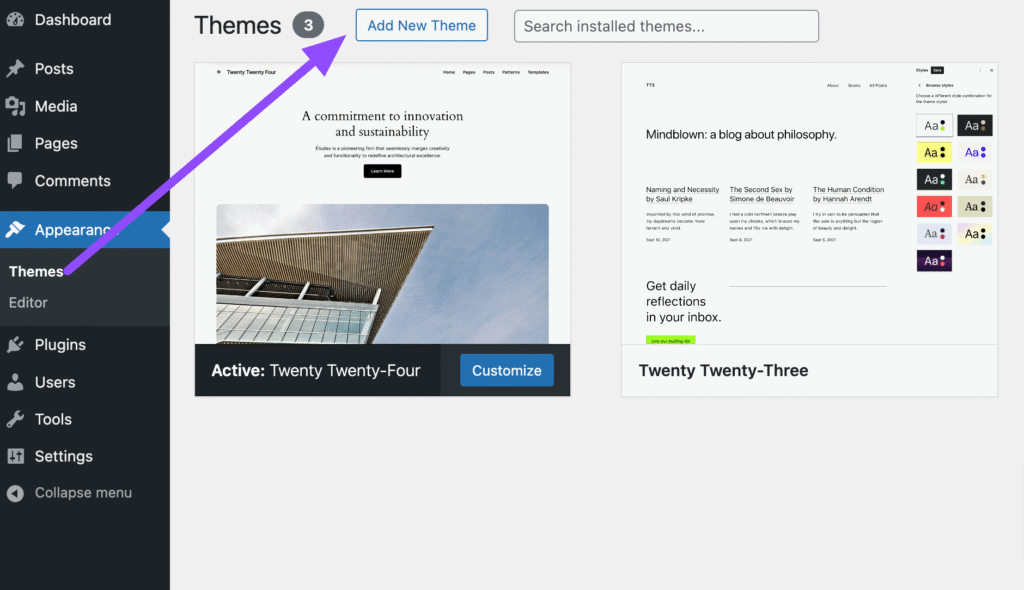
  1. Navigate to Appearance → Themes in your WordPress admin dashboard.
  2. Click the Add New button at the top of the page, then select the Upload Theme option.
  3. Choose the theme file: Theme Files / Ecom.zip from the downloaded package and click Install Now.
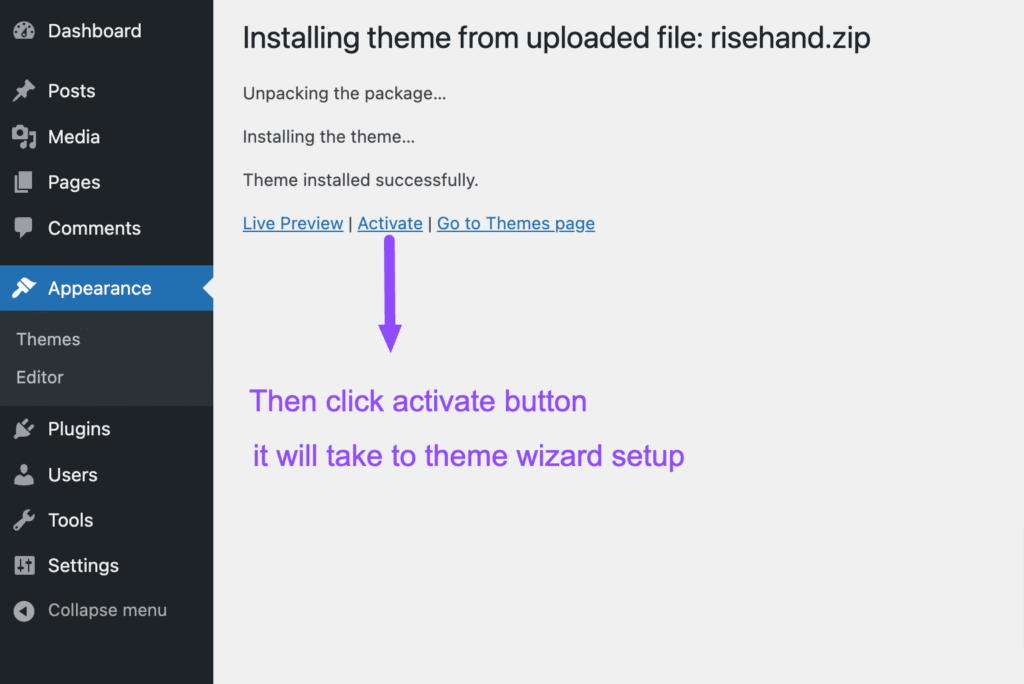
  4. Once the installation is complete, click Activate. This will redirect you to the theme setup wizard.
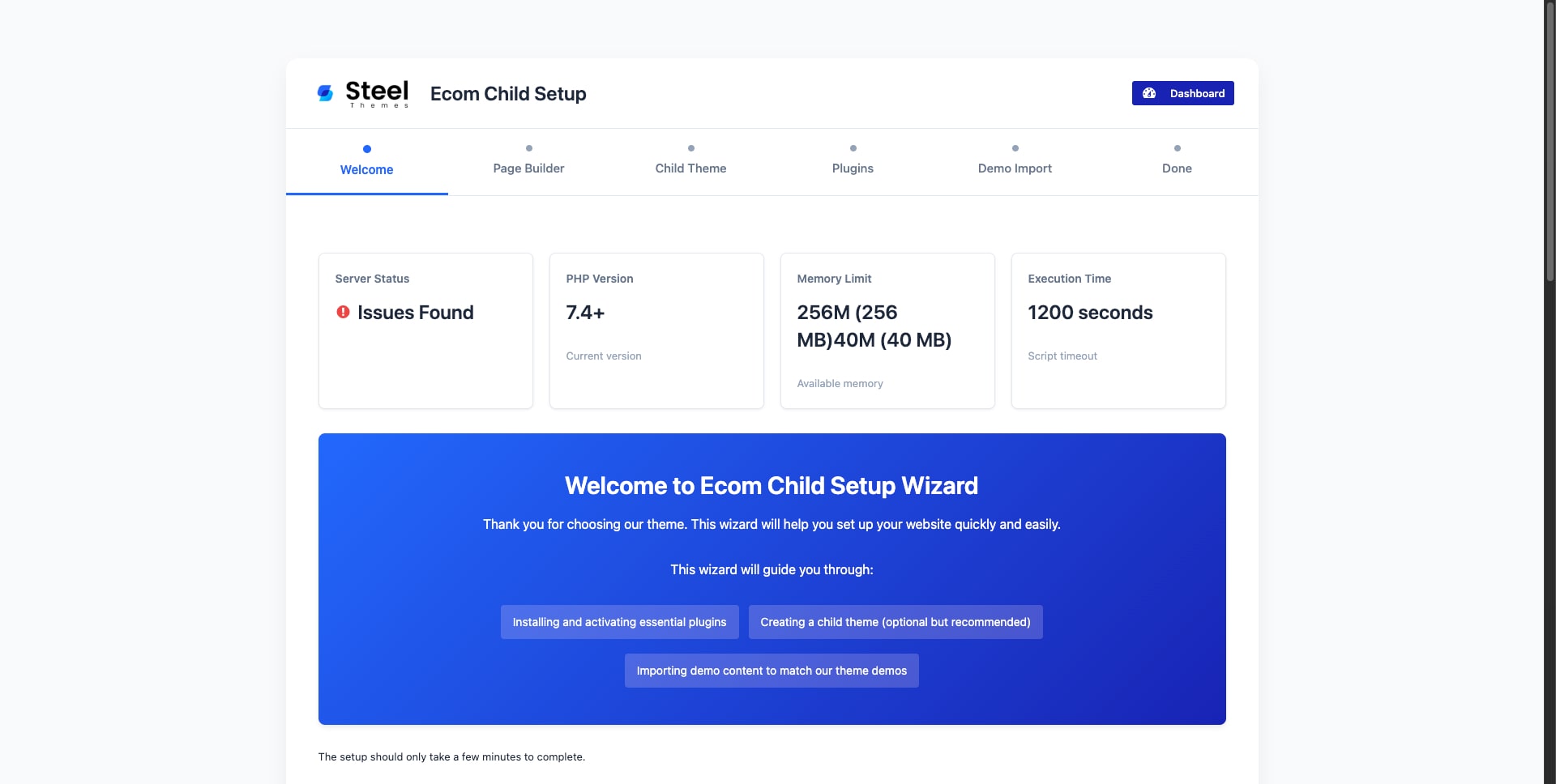
  5. Follow the steps in the setup wizard to:
    • Install the child theme.
    • Install required plugins.
    • Import demo content.
  6. After the demo import is complete, click View Your Website to see the setup in action.

Note: If the setup wizard does not appear automatically after activation, go to Ecom → Theme Setup / Import Demo in the admin panel to launch the setup wizard manually.
Video Guide:


2. Via FTP (Recommended)

  1. Extract the downloaded theme package: ecom-main-package.zip.
  2. Open the extracted folder and locate the theme files.
  3. Use an FTP client such as FileZilla to connect to your server.
  4. Navigate to the WordPress themes directory/wp-content/themes/
  5. Upload the Ecom folder from the extracted theme files.
  6. Once the upload is complete, go to Appearance → Themes in your WordPress admin dashboard.
  7. Click Activate to enable the theme.
  8. Proceed to install the required plugins and import demo content as needed.

Following these steps will ensure a smooth installation of your WordPress theme and demo content setup.

Leave a Reply

Your email address will not be published. Required fields are marked *

© 2025. Made with ♥ from steelthemes.com