
There are two ways to upload the theme. Please follow the steps below.
1. Via WordPress Dashboard
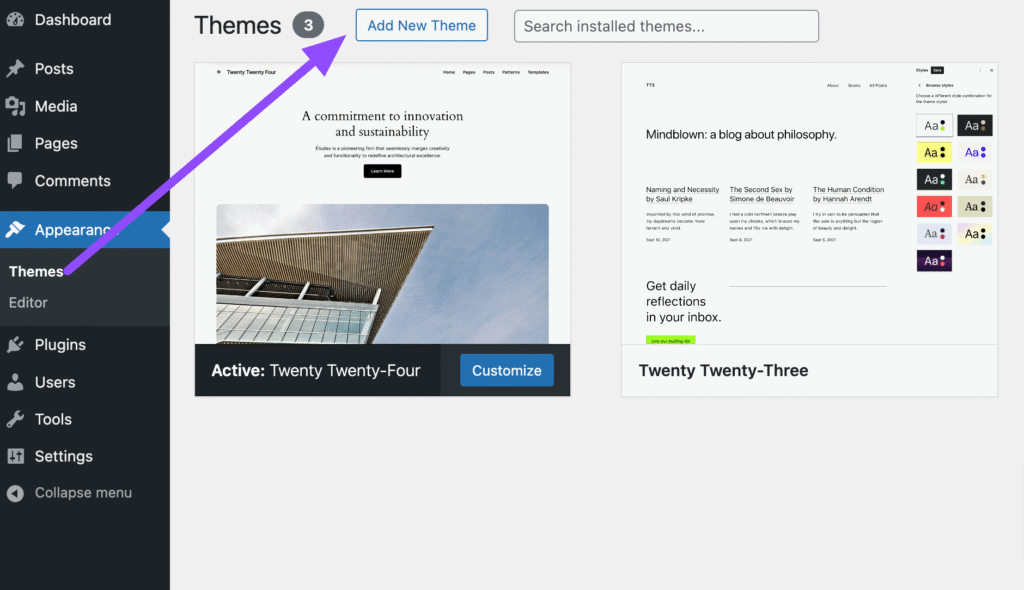
- Navigate to Appearance → Themes in your WordPress admin dashboard.
- Click the Add New button at the top of the page, then select the Upload Theme option.
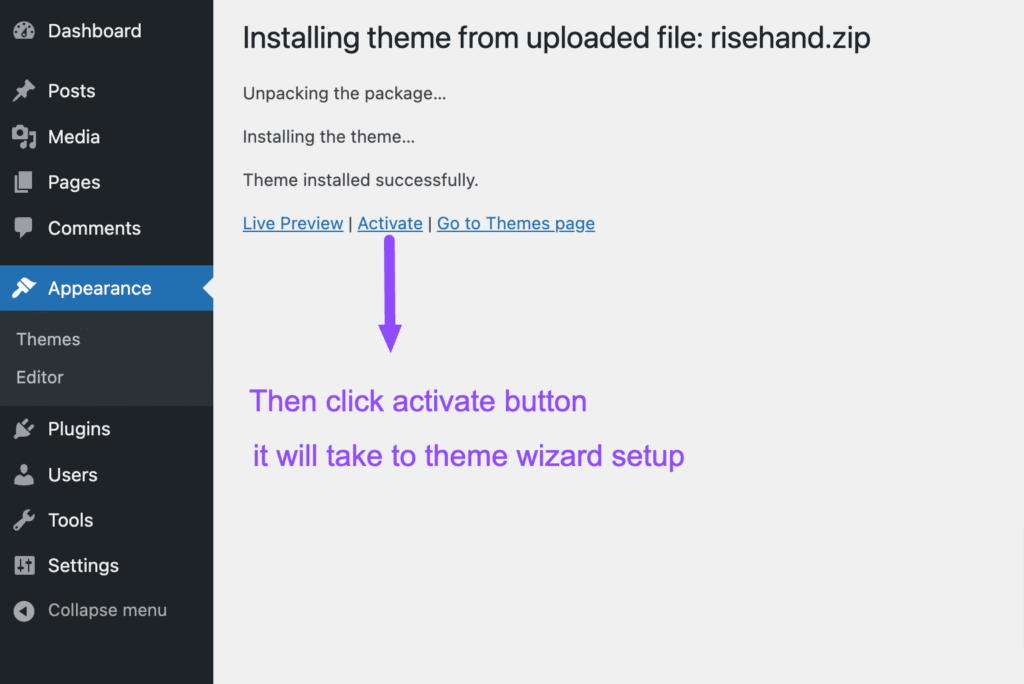
- Choose the theme file: Theme Files / Ecom.zip from the downloaded package and click Install Now.
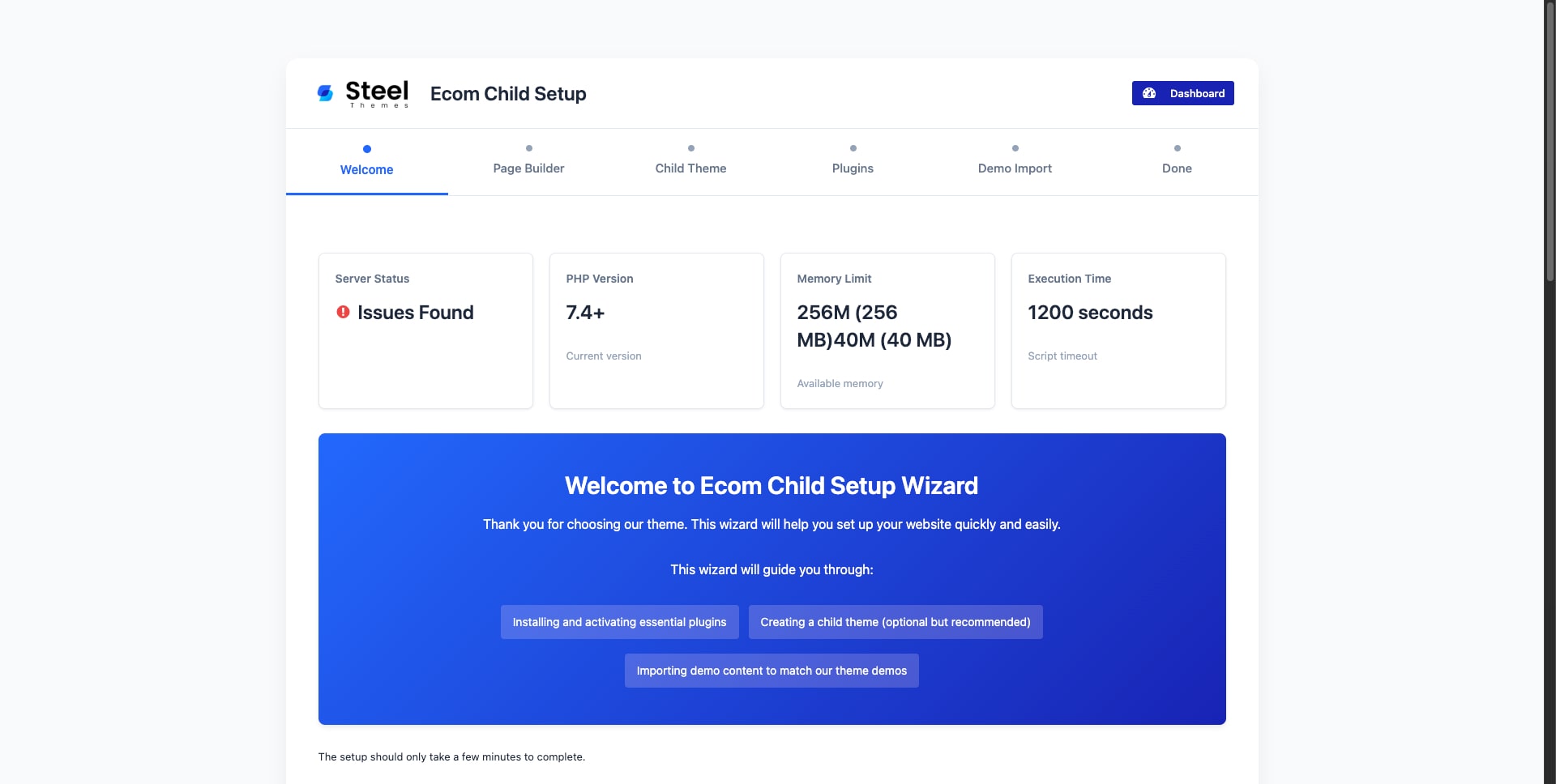
- Once the installation is complete, click Activate. This will redirect you to the theme setup wizard.
- Follow the steps in the setup wizard to:
- Install the child theme.
- Install required plugins.
- Import demo content.
- After the demo import is complete, click View Your Website to see the setup in action.
Note: If the setup wizard does not appear automatically after activation, go to Ecom → Theme Setup / Import Demo in the admin panel to launch the setup wizard manually.

Leave a Reply