
Navigate to Steelthemes Options
- On your WordPress dashboard, look for “Steelthemes Options” in the left sidebar menu
- Click on “Steelthemes Options”
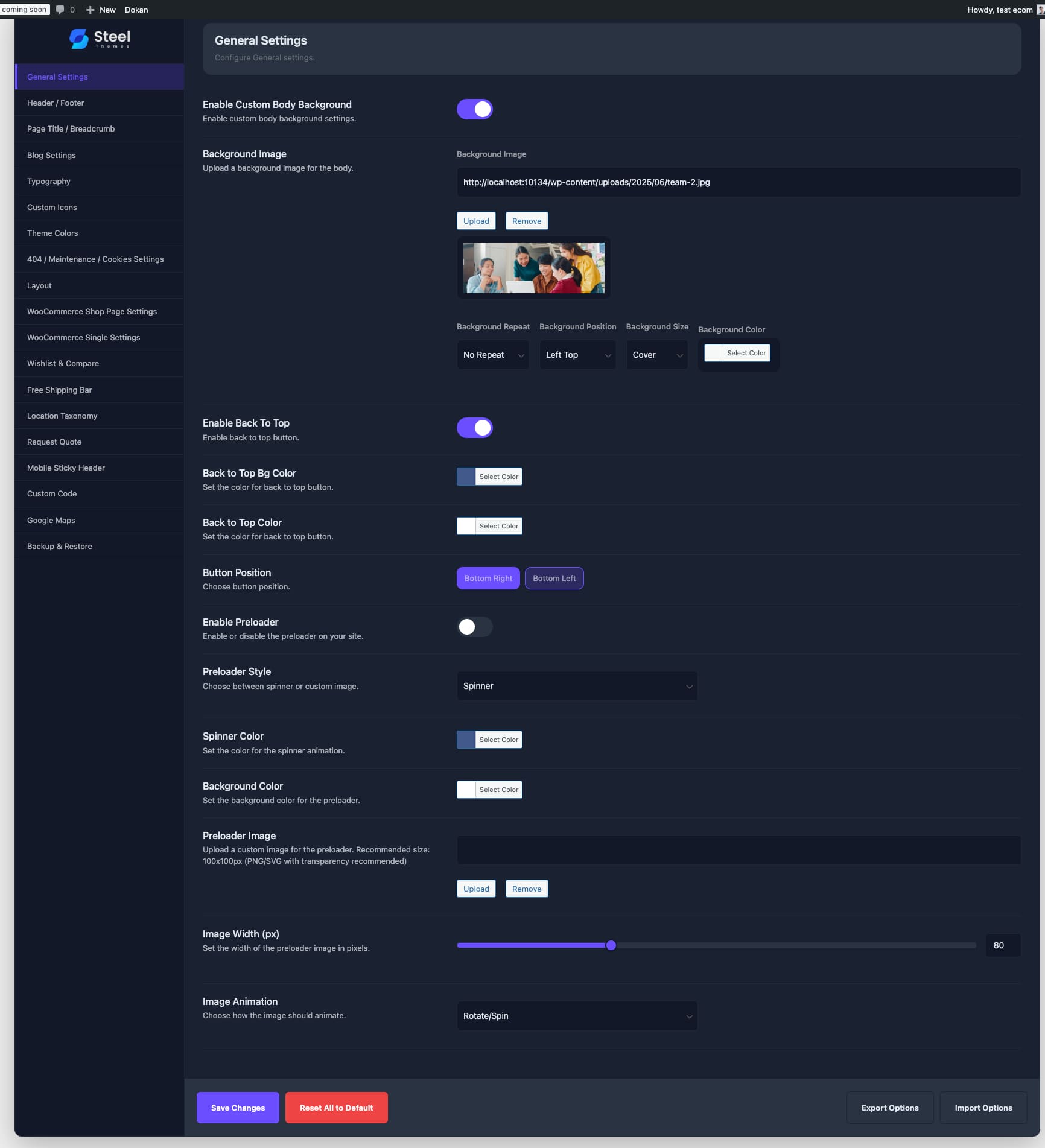
- Click on “General Settings” from the submenu (it should be the first option and default view)
- The General Settings panel will open in the main content area
General Settings Overview
The General Settings page allows you to configure the core visual and functional elements of your Steel theme. This is the main control panel for customizing your website’s appearance and behavior.
Available Settings and Their Uses
Custom Body Background
- Enable Custom Body Background: Toggle to enable/disable custom background settings
- Background Image: Upload a custom background image for your website body
- Supports JPG, PNG, and other standard image formats
- Preview shows current background image
- Background Options:
- Background Repeat: Control how the background image repeats (No Repeat, Repeat, etc.)
- Background Position: Set image position (Left Top, Center, etc.)
- Background Size: Define how the image scales (Cover, Contain, etc.)
- Background Color: Set a solid background color as fallback or overlay
Back to Top Button Configuration
- Enable Back To Top: Toggle to show/hide the back-to-top button on your site
- Back to Top Bg Color: Set the background color for the button
- Back to Top Color: Set the text/icon color for the button
- Button Position: Choose where the button appears (Bottom Right or Bottom Left)
Preloader Settings
- Enable Preloader: Toggle to show/hide a loading animation when pages load
- Preloader Style: Choose from different preloader animations (Spinner, etc.)
- Spinner Color: Customize the color of the loading spinner
- Background Color: Set the background color for the preloader screen
- Preloader Image: Upload a custom image for the preloader
- Recommended size: 100x100px (PNG/SVG with transparency recommended)
- Image Width: Adjust the width of the preloader image (in pixels)
- Image Animation: Choose how the preloader image animates (Rotate/Spin, etc.)
Best Practices
Background Images
- Use high-quality images (1920x1080px or larger for full-screen backgrounds)
- Optimize images for web to ensure fast loading times
- Consider using “Cover” background size for full-screen effects
- Test background with your content to ensure readability
Back to Top Button
- Enable this feature for long pages to improve user experience
- Choose colors that contrast well with your site design
- Position the button where it won’t interfere with other elements
Preloader
- Use preloaders sparingly – only enable if your site has longer loading times
- Keep preloader images small and optimized
- Choose animations that match your brand aesthetic
- Test on different devices to ensure smooth performance
Saving Changes
- Click “Save Changes” button at the bottom to apply your settings
- Use “Reset All to Default” to restore original theme settings
- “Export Options” and “Import Options” allow you to backup and restore your configurations
Leave a Reply